
All BOOM! Buster Guides
BOOM! Buster Controls: Controller Prompts, Keyboard Status
Every move BOOM! Buster teaches in its tutorials, from jump to air-dash and toss, with the controller buttons shown on screen. Keyboard keys are unverified.
BOOM! Buster teaches its moves through short on-screen prompts, and those prompts use controller icons. That makes the controller layout the best-documented part of the game. This page lists every action the tutorial teaches, the button shown for it and where to see it in PhoneInk’s first-look video, checked on 15 November 2026. If you are brand new, the how to play guide puts these moves in context.
What are the controls in BOOM! Buster?
The tutorial prompts show Xbox-style icons: A (green), X (blue), Y (yellow), the D-pad and the right trigger (RT). Each action below is named by the game’s own on-screen text.
| Action | Button shown on screen | Lesson | Video time |
|---|---|---|---|
| Jump | A | 1, Hello World | 2:52 |
| Double jump | A again in mid-air | 1, Hello World | 2:52 |
| Spin | X | 1, Hello World | 2:56 |
| Crouch | Hold D-pad down | 2, Back Breaker | 3:04 |
| Backflip | Jump (A) while crouching | 2, Back Breaker | 3:04 |
| Air-dash | RT in mid-air | 3, Jump, Jump, Dash! | 3:25 |
| Pick up a BOM | Touch it (no button) | 4, Sort… or Die! | 3:47 |
| Toss a BOM into a pipe | Spin (X) | 4, Sort… or Die! | 3:47 |
| Set an item down gently | Hold D-pad down while spinning (X) | 5, Rock-a-Bye Baby | 4:05 |
| Activate the shield | Y when the shield meter is full | 7, Super Powers | 4:35 |
Two things worth knowing from that table. Spin does double duty: it is the toss button for pipes and half of the gentle set-down. And picking up a BOM needs no button at all, you just touch it. The Wow!! and Insane!! combo achievements in the achievements list build on stacking BOMs before you toss, and the overview page explains what the game is about.
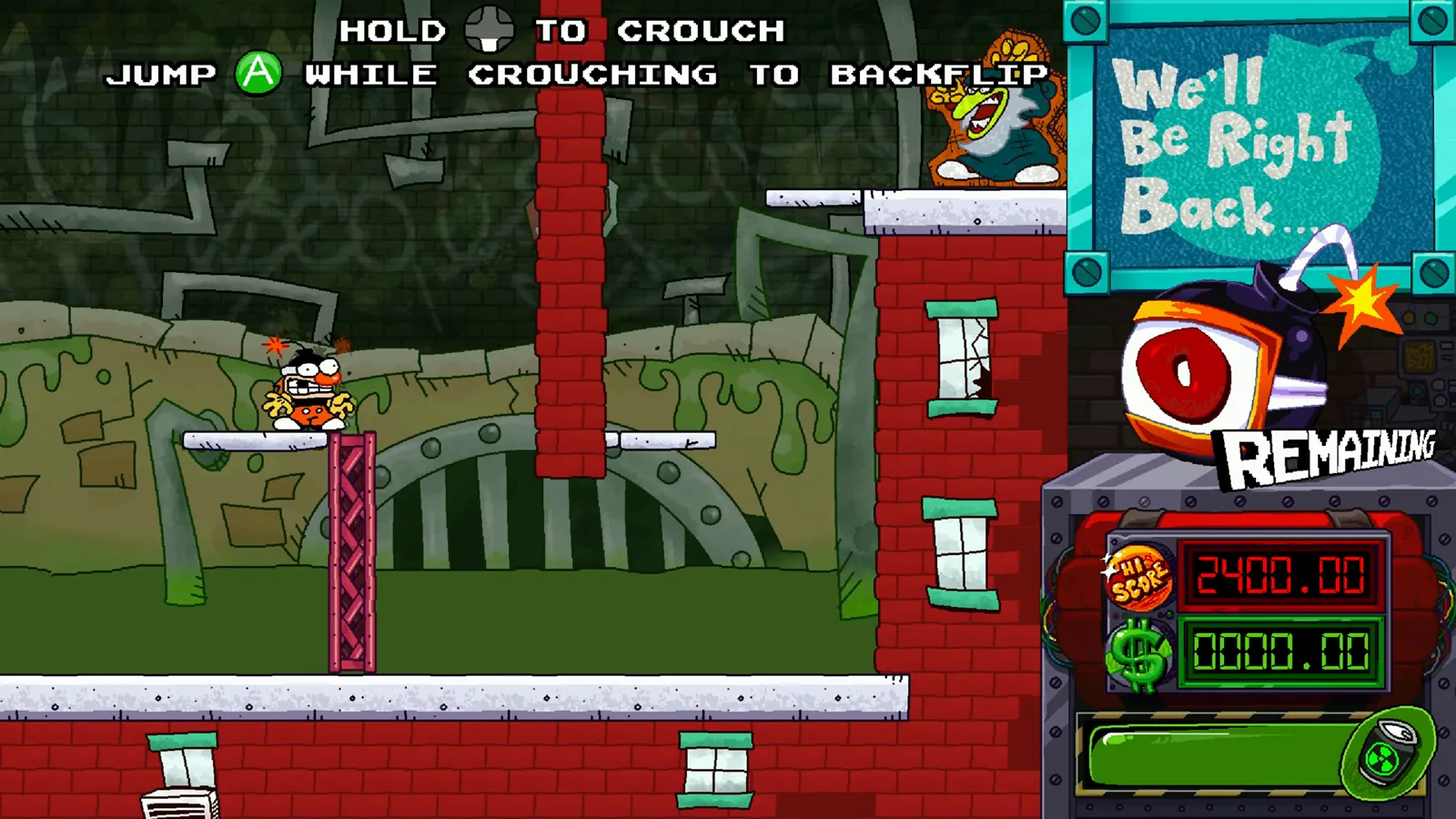
Lesson 2, Back Breaker: crouch and backflip, at 3:10 in PhoneInk’s video. Game art (c) TALLGLASS.
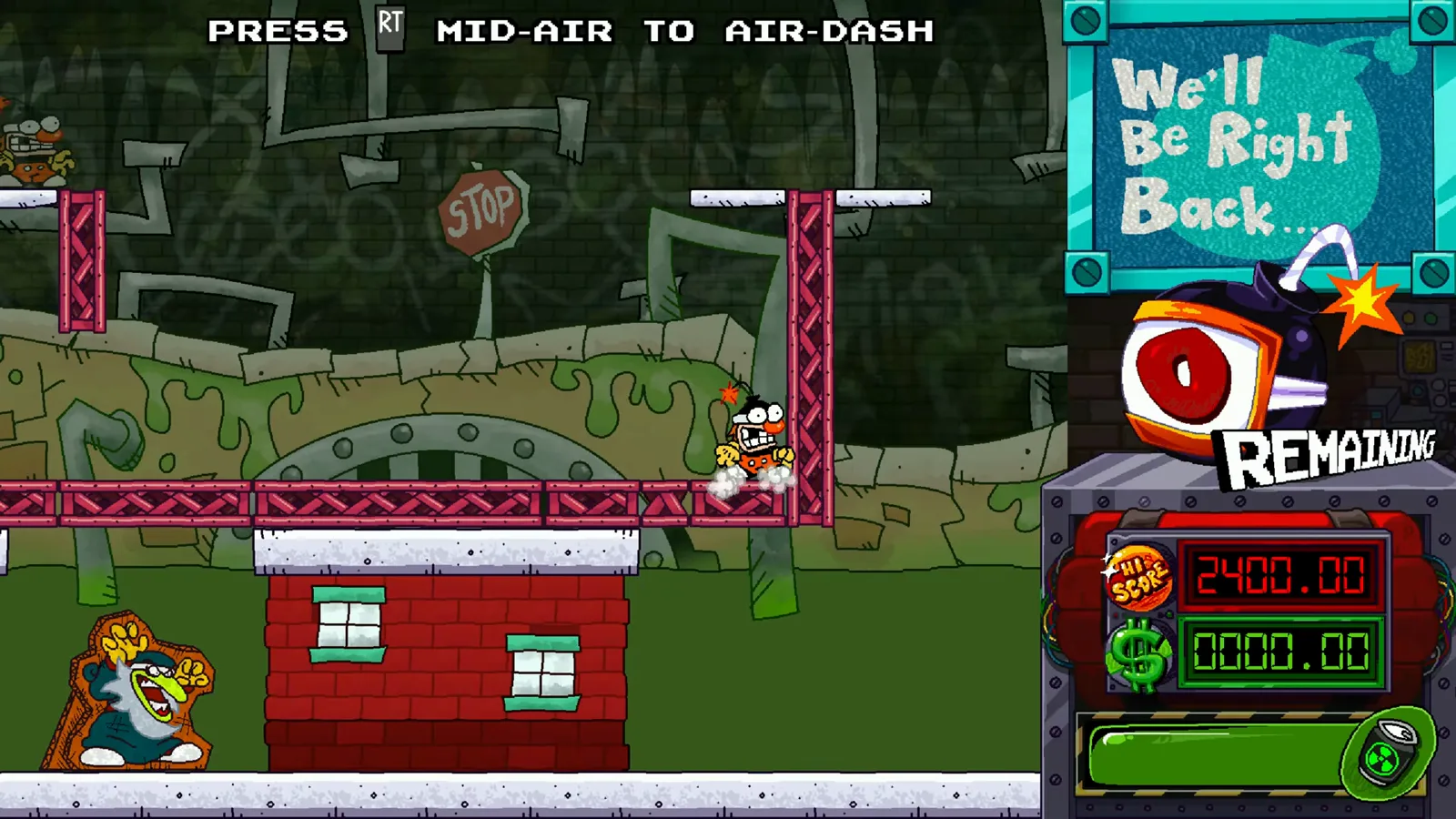
Lesson 3, Jump, Jump, Dash!: air-dash, at 3:30 in PhoneInk’s video. Game art (c) TALLGLASS.
Does BOOM! Buster support controllers?
Yes. Steam lists Full Controller Support, and SteamDB names DualShock and DualSense controllers over USB. The v1.0.1 patch on 14 November 2026 fixed a deadzone crash for off-brand controllers, so if a third-party gamepad crashed the game for you, make sure you are on the latest version. The details are on the patch notes page.
What are the keyboard controls?
Not verified yet. Steam’s accessibility list for the game includes a Keyboard Only Option, so keyboard play is supported. None of the footage we checked shows the default keys or a key-binding screen, and we have not confirmed whether controls can be rebound. We will not guess a layout, because a wrong key list wastes more of your time than no list.
To check for yourself, open OPTIONS from the main menu; we have not seen what it contains. The main menu lists CAMPAIGN, a mystery entry shown as ???, ROUND SELECT, HIGHSCORES, EXTRAS, OPTIONS and QUIT.
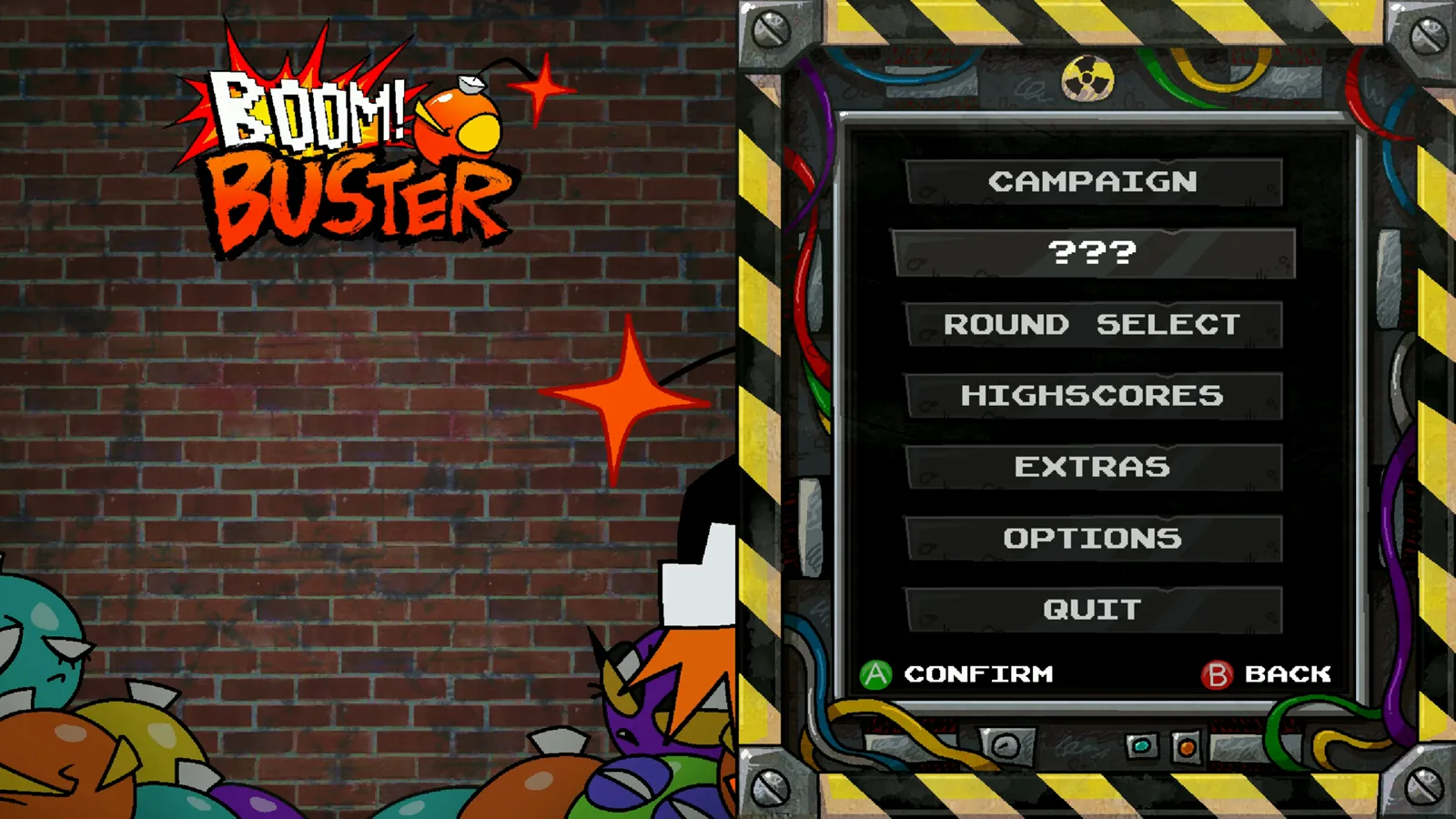
The main menu at 0:30 in PhoneInk’s video. Game art (c) TALLGLASS.
Which accessibility options does BOOM! Buster list?
SteamDB lists the following for the game, checked on 15 November 2026:
- Color Alternatives
- Keyboard Only Option
- Playable without Timed Input
- Save Anytime
- Custom volume controls
This wiki has not yet tested what each option changes in the menus.
FAQ
How do you double jump in BOOM! Buster?
What button throws a BOM into a pipe?
What are the default keyboard controls?
Does BOOM! Buster work with a PlayStation controller?
Related Articles
guides
How to Play BOOM! Buster: BOMs, Combos and Tutorial Skills
A beginner guide to BOOM! Buster built from the release version: the seven tutorial lessons, the REMAINING counter, pipes, combos, deaths and the shield meter.
guides
What Is BOOM! Buster? Price, Platforms, Modes and Content
BOOM! Buster is a single-screen arcade platformer from TALLGLASS about sorting live bombs into pipes. Release date, price, co-op, content size and PC specs.
guides
BOOM! Buster Achievements: All 31 Steam Unlock Conditions
Complete list of all 31 BOOM! Buster Steam achievements with the official unlock conditions, grouped by campaign, B-side, combos, deaths and bonus rooms.
Was this helpful?
Thanks for the feedback!